How to Open VCE Files on Mac (2026) — Without Windows or a VM
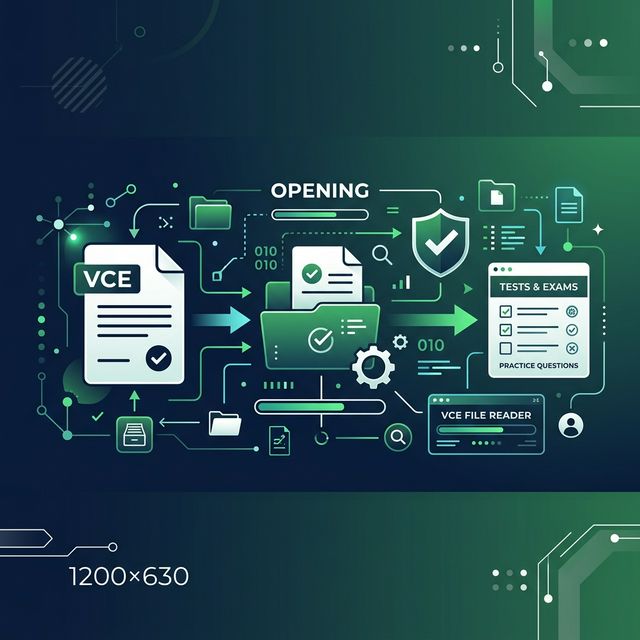
The VCE Exam Simulator is a Windows application, and the advice you will find for macOS almost always begins with installing Windows — Parallels, Boot Camp on older Intel machines, or a virtual machine. That is a paid licence and an afternoon of setup to read a file containing a few hundred multiple-choice questions.
Most of the time it is unnecessary. Which route you need depends on one property of your file, and you can check it in about thirty seconds without installing anything.
Key Takeaways
- There is no native macOS VCE simulator from the format's publisher, and there has not been one.
- Check whether your file is encrypted before doing anything else. Unencrypted files need no Windows at all.
- macOS has the tool built in:
unzip -l yourfile.vcein Terminal answers the question with nothing installed. - If it is unencrypted, our free extractor reads it in Safari or Chrome and turns it into a practice quiz. Nothing is uploaded — parsing runs locally in the browser.
- Only an encrypted file justifies a VM, and even then a borrowed Windows machine for ten minutes is usually cheaper than a Parallels licence.
First: is your file encrypted?
This decides everything, and macOS can answer it without any download. Open Terminal, then drag your file onto the window after typing the command so the path fills itself in:
unzip -l ~/Downloads/yourfile.vceIf you get a listing of files — names ending in .xml, .dat or .exam — your file is an ordinary ZIP archive and the questions inside are readable. Skip to the next section; you will not need Windows.
If you get End-of-central-directory signature not found or a similar complaint, the file is encrypted and you will need software that holds the key.
If Terminal is not your thing, the same test works in Finder: duplicate the file, rename the copy's extension to .zip, and double-click. macOS will either expand it into a folder or refuse. Finder hides extensions by default — turn them on in Finder → Settings → Advanced → Show all filename extensions, or you will end up renaming the display name only.
If it is not encrypted: use the browser
This covers most older question banks and it needs nothing installed.
Open our free question extractor in Safari, Chrome or Firefox and drop the file in. It opens the archive, finds the question XML, and builds a practice quiz you can take straight away, with the answer key intact. It accepts .vce, .vcex and .ete, plus PDF, DOCX and TXT.
Two things worth knowing on a Mac specifically:
- The file never leaves your machine. Parsing happens in the browser with JavaScript, so there is no upload and no server copy. That matters more than usual if the material came from an employer's training budget.
- Safari's download quarantine does not interfere, because you are handing the file to a web page rather than executing it. If Safari has already flagged the download, the extractor still reads it.
If it is encrypted: the honest options, ranked
An encrypted file cannot be read by any web tool, on any platform. What remains, in the order I would try them:
1. Borrow a Windows machine for ten minutes
Unglamorous and usually fastest. Open the file in the VCE Exam Simulator on any Windows PC, switch to a mode that shows questions and answers, and print to PDF. Email yourself the PDF, then feed it to the extractor on your Mac and you have a quiz again. Ten minutes on someone else's machine beats a licence and an afternoon.
2. A Windows VM — only if you will reuse it
On Apple Silicon this means a virtualisation app running Windows on ARM; on older Intel Macs the options are wider. It works, and if you already run Windows for something else the marginal cost is zero. Buying a licence purely to read one question bank is poor value, and worth naming as such.
3. Ask whoever gave you the file for a different format
Routinely overlooked. Training providers and colleagues can often export the same material as PDF or plain text, which removes the problem entirely. If the file came from a course you paid for, the provider has no reason to refuse.
What not to bother with
Two things that come up repeatedly in search results and do not work:
- Wine and similar compatibility layers. People do get the simulator running this way, but reports are inconsistent across macOS versions and the debugging time exceeds the ten minutes that option 1 costs.
- "Free online VCE converter" sites. For an encrypted file, converting would mean breaking AES-256. What those sites actually do is take your upload and frequently hand back an installer rather than a document. Our guide to VCE-to-PDF conversion goes through the patterns in detail.
Why there is no Mac version
Worth a sentence, because it explains why this keeps being awkward. The format and its simulator come from a Windows desktop lineage, and the publisher's commercial interest is in people using its own software under its own subscription. Building a macOS client would widen access to files the encryption exists to restrict. That is a business position rather than a technical limit, and it is unlikely to change.
What to do next
- Run the
unzip -ltest. It takes half a minute and decides which half of this guide applies to you. - Unencrypted? Straight into the extractor — no Windows, no install.
- Encrypted? Ten minutes on a borrowed PC, print to PDF, then use the extractor on the PDF.
- Not sure which extension you have? VCE vs VCEX vs ETE covers the differences and why they matter less than you would think.
Studying for Security+ and would rather skip the file entirely? The free SY0-701 practice test runs in any browser on any Mac, with no signup.
Independent study resource. Not affiliated with or endorsed by Avanset, Apple, CompTIA, Cisco or AWS.
Ready to Practice?
Try our free exam simulator. No signup, no paywall, 100% private.